Cansu Aydin



_logo.svg.png)
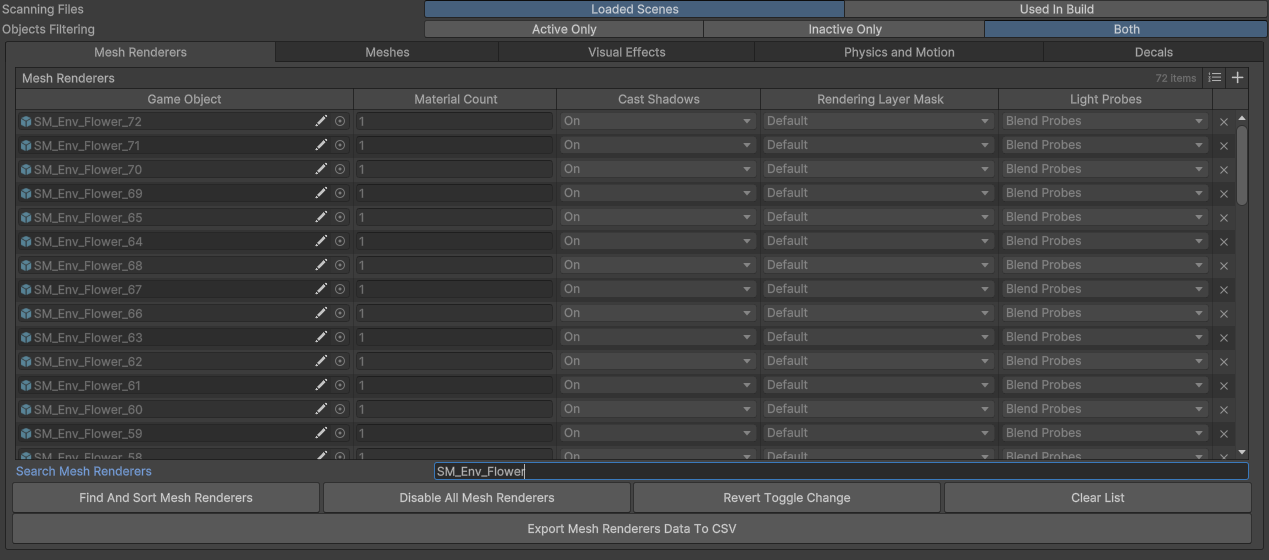
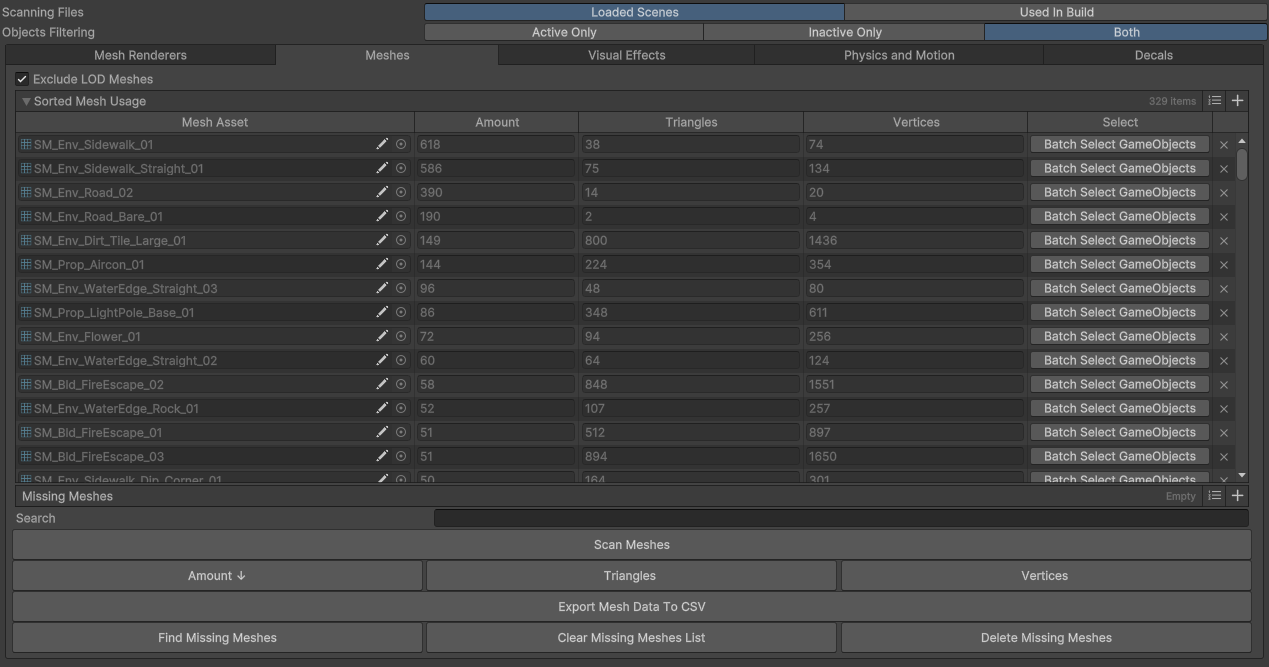
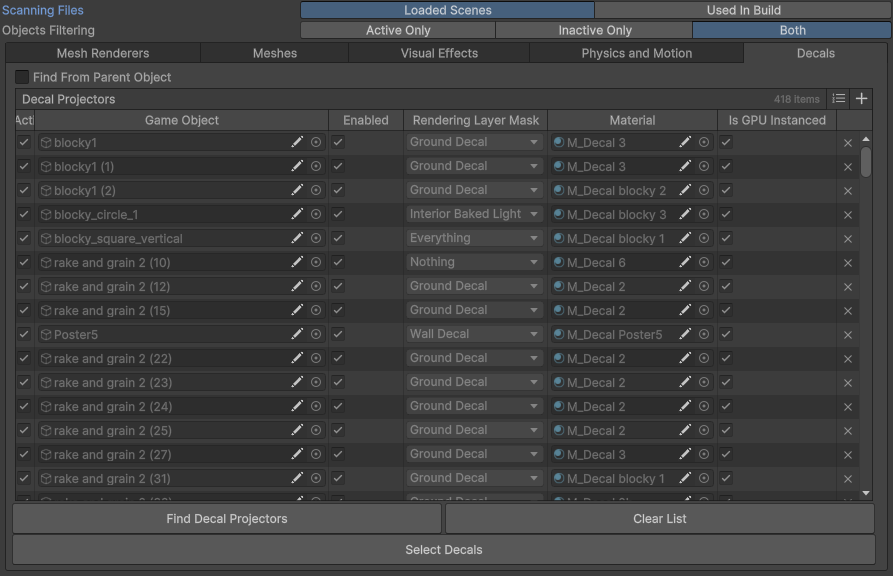
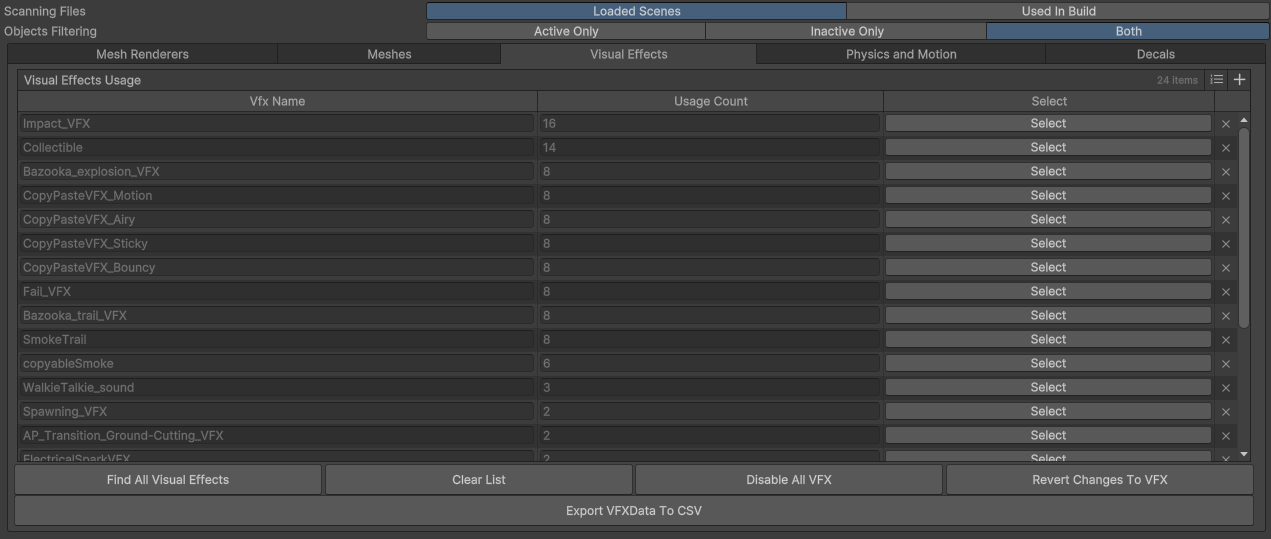
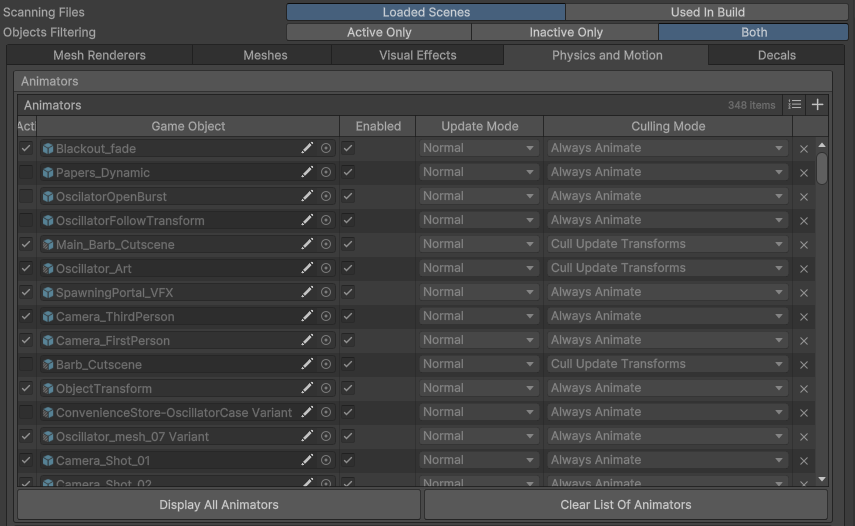
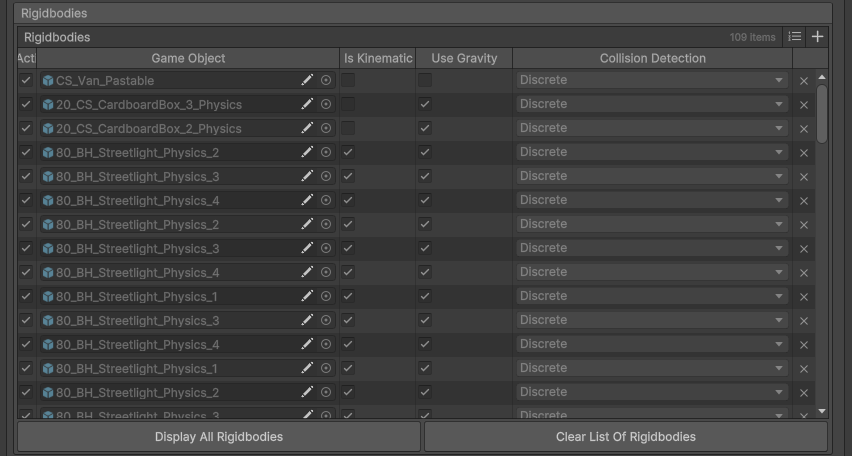
The Renderer Explorer is a diagnostic tool inspired by Unity's Lighting Explorer to analyse all types of renderers, as well as physics and animation components.
The tool can be used to scan files in that are used in the build of the project, or in the currently loaded scenes.
It also offers filtering options for active or inactive objects, as well as a search function that's especially practical with prefix nomenclatures.
The tool also offers an option to export the data as a CSV file so if the team uses external software such as Excel or Notion for data it can be better disseminated.
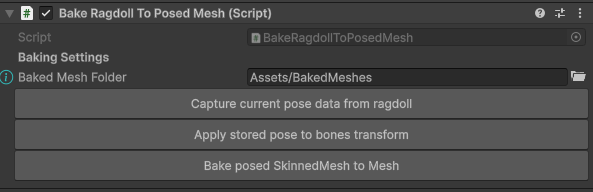
Body Posing from Ragdoll: Pose Capture & Mesh BakingUnity’s ragdoll system generates physics‑driven poses at runtime, but capturing a specific pose and applying it back to the skinned mesh bones isn’t built‑in. A lack was that once the ragdoll settles into a natural pose (e.g., a fallen character), there was no easy way to store that pose and later bake it into a static mesh for performance or further editing.
I created a workflow that solves this. The tool first captures the current transform data of every bone in the skinned mesh hierarchy and saves it as a JSON file. It then can apply that stored pose back to the bones, effectively “freezing” the ragdoll’s shape onto the character’s skeleton.
Additionally, I added a baking step that converts the posed skinned mesh into a regular mesh with MeshFilter and MeshRenderer. The tool finds all SkinnedMeshRenderers under the root, bakes each one using and recenters the resulting mesh so its pivot is at the visual center instead of the original bone root. This avoids the common issue where a ragdoll’s pivot is far from its body after falling.


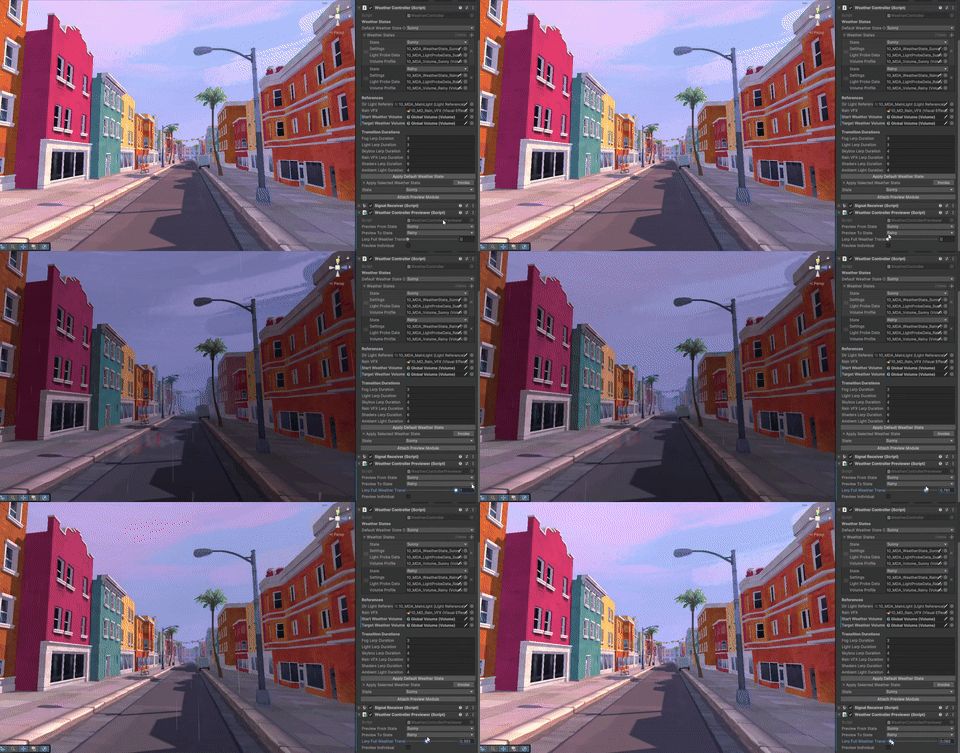
The weather system is created to set the weather state of a scene, and transitions between different weather states at any point in the game. It also offers in-editor tools to ease artists use.
Weather State Scriptable Objects
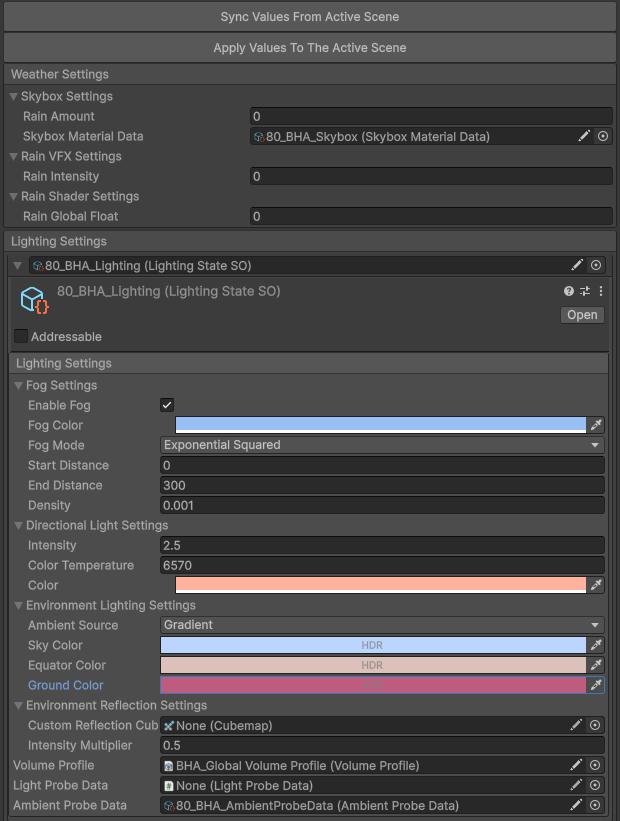
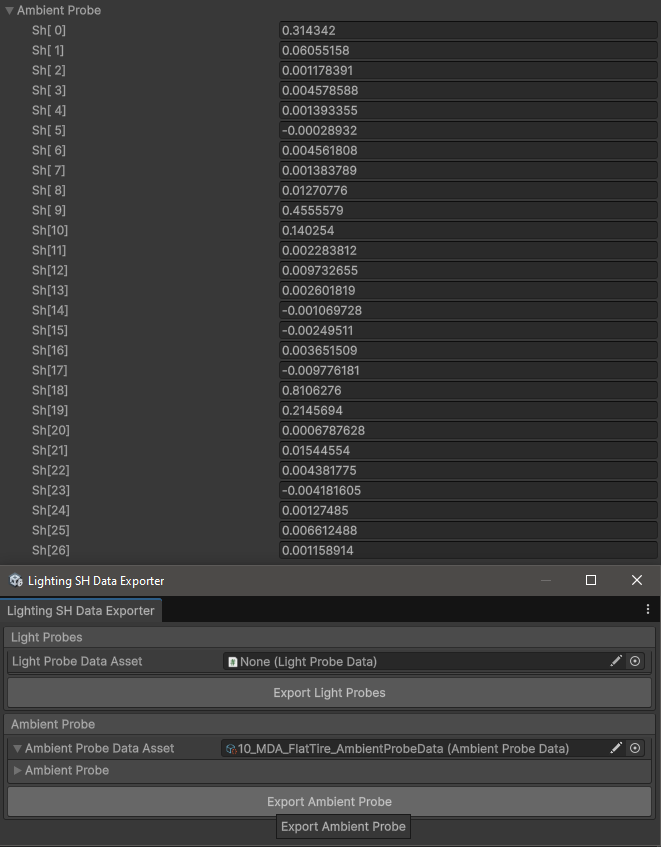
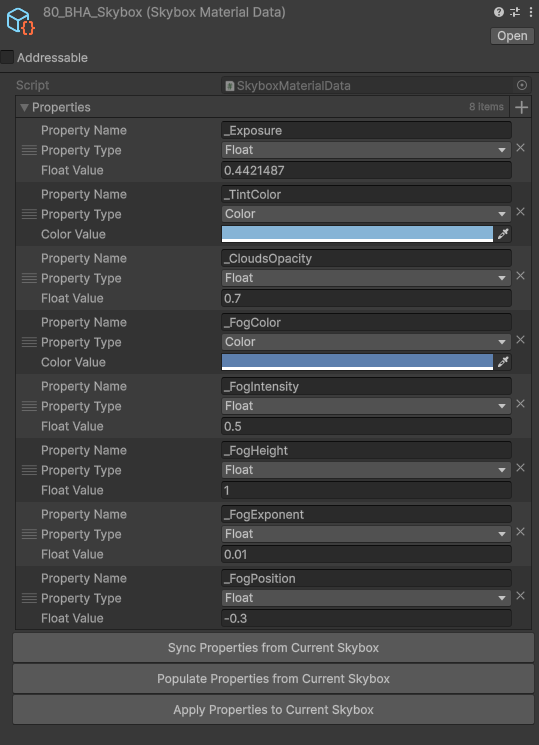
I use Scriptable Objects to create data for the different weather states to set or transition between. The WeatherData SO uses several things to set the lighting and weather conditions such as RenderSettings, fog, environmental reflections, environmental lighting, skybox, custom shader properties, custom VFX properties. It also makes use of another custom SO that's for LightProbeData and AmbientProbeData which are SH (Spherical Harmonics) that are generated by my helper utility tools.
Weather & Lighting Transitions
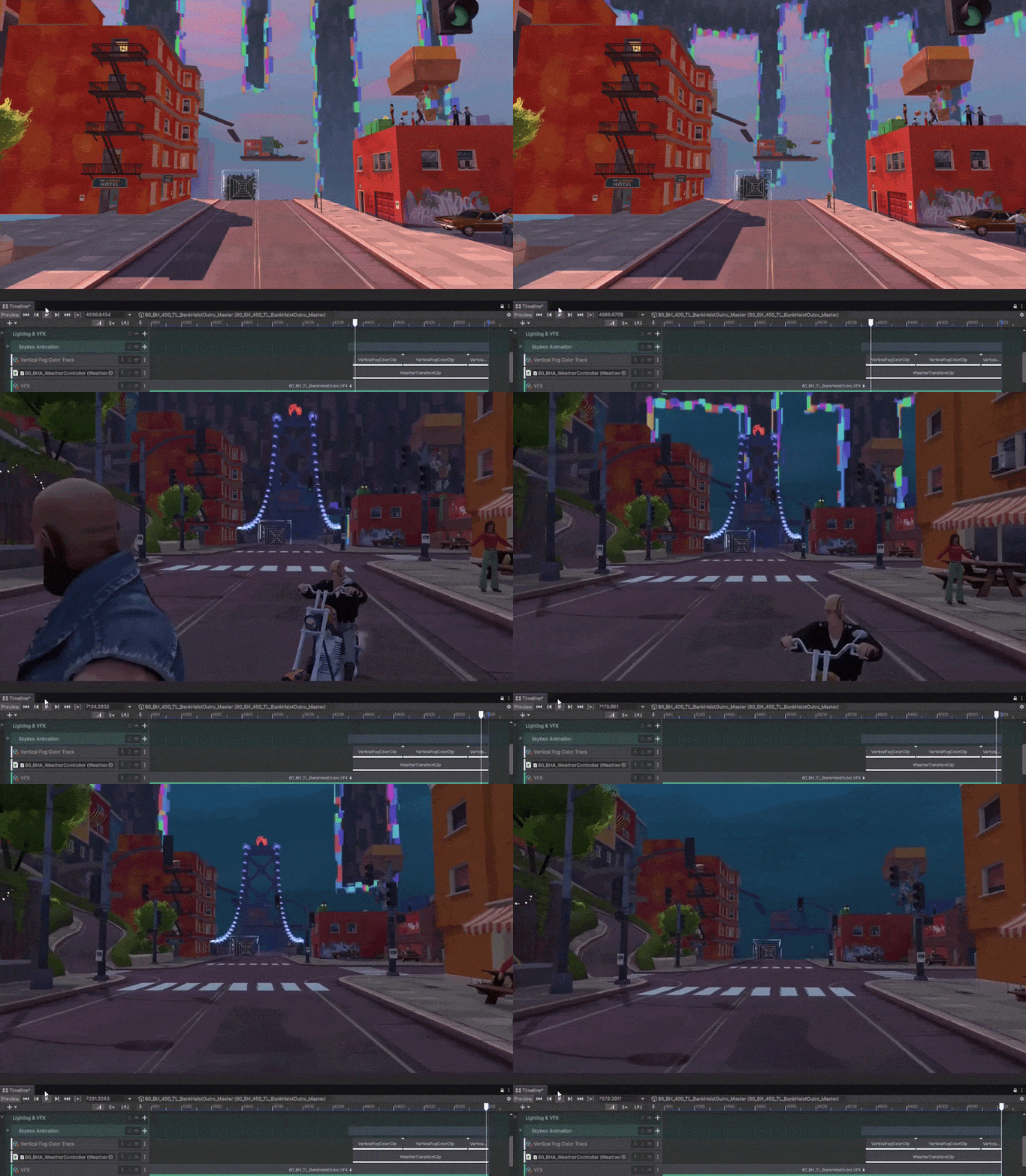
At various points of the game, whether a cutscene or game event, it is possible to trigger a weather transition between different weather states. To visualize what the transition will look like, I also created an in-editor preview module for the weather system. This lets the artists be able to adjust the lighting and other properties of a weather such as the global rain property that controls shaders and VFX easily. The transition routines use Jobs and Burst to make use of multi threading for efficiency.
Timeline Integration
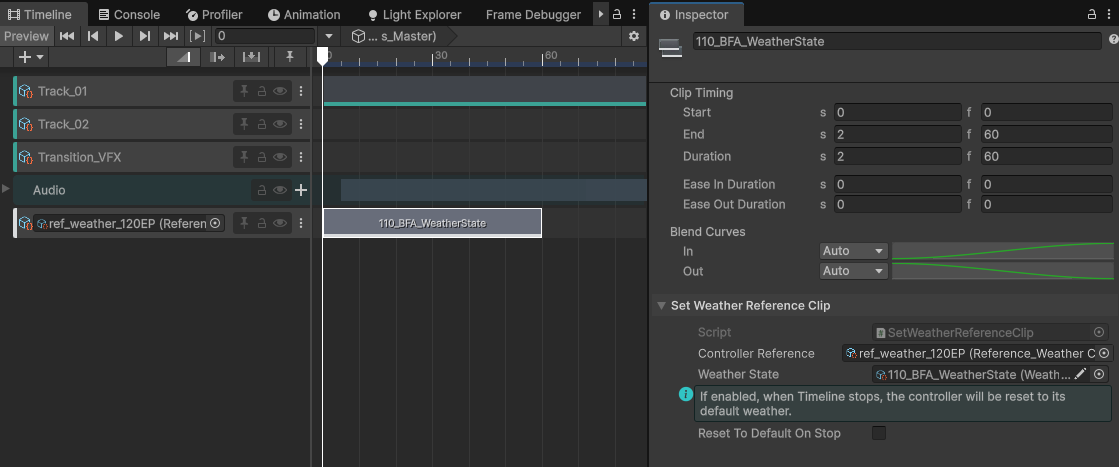
Weather and lighting transitions need to also be triggered during cutscenes; for this I developed custom timeline tracks that can be effortlessly integrated into any cutscene, to control lighting, fog, skybox and other custom properties.
Lightmap Data Transfer Tool
The need for this tool came from many frustrations while lightbaking scenes in Unity and having to rebake after subtle changes in the scene data, as well as challenges that come from using DOTS/ECS subscenes framework.
The ‘Lightmap Data’ scriptable object holds information about the lightbake such as directional mode, shadowmask mode, the lightmap texture2D, and the mappings of mesh renderers UV position on the lightmap as a list of structs. The tool captures the data from the active scene/s and saves it as a scriptable object data. Once the data is saved to a filepath, it can be applied to a different scene, or the same scene at a different time after some changes.
Lighting Setup Helper
When setting up a scene for lightbaking, it is very time consuming to set up correct properties of the MeshRenderer components of many game objects, because it is not possible to do it at once in Unity by default. I developed this tool to efficiently setup mesh renderers for light baking. With the tool I can assign any object, get all objects that are its children, and apply any setting of the MeshRenderer,that are relevant for lighting such as contribute GI options, apply a light probe anchor transform field, change cast shadows mode or change rendering layer which is especially useful for scenes that have interior exterior separation, and revert these changes via batching if necessary.
.png)
.png)
.png)
.png)
Texture Channel Packer
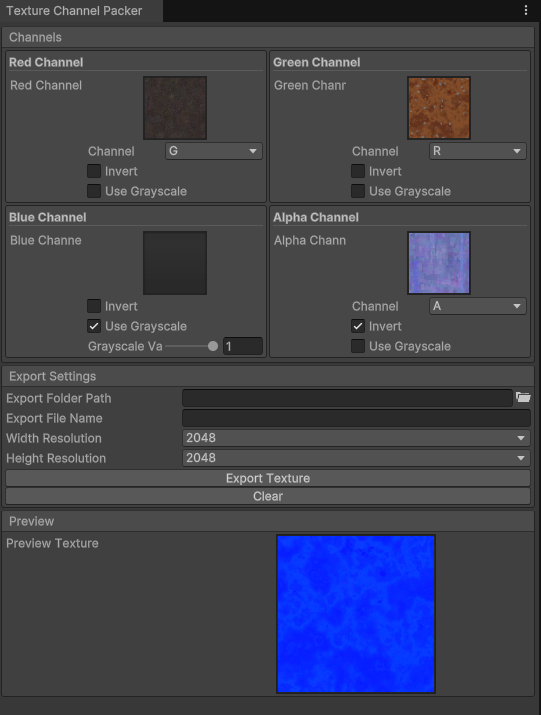
Other than being a typical texture channel packer, I worked on a more friendly interface that lets the user choose a specific channel from a texture slot, have the option to invert or use a uniform greyscale value for a specified channel, as well as preview the output texture real-time before exporting.
Material to Texture Baker
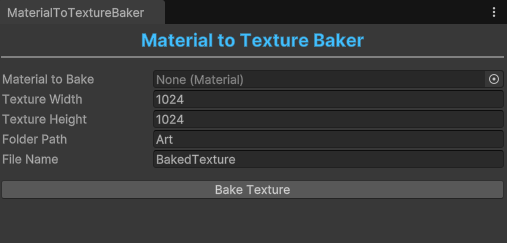
It is often necessary or practical to bake a shader's functions to a texture, this tool lets the user assign a material and bake that into a texture of any resolution. I used this during the production of Yerba Buena for creating various VFX textures instead of using those procedural textures at runtime for optimization.
Material Reference Cleaner
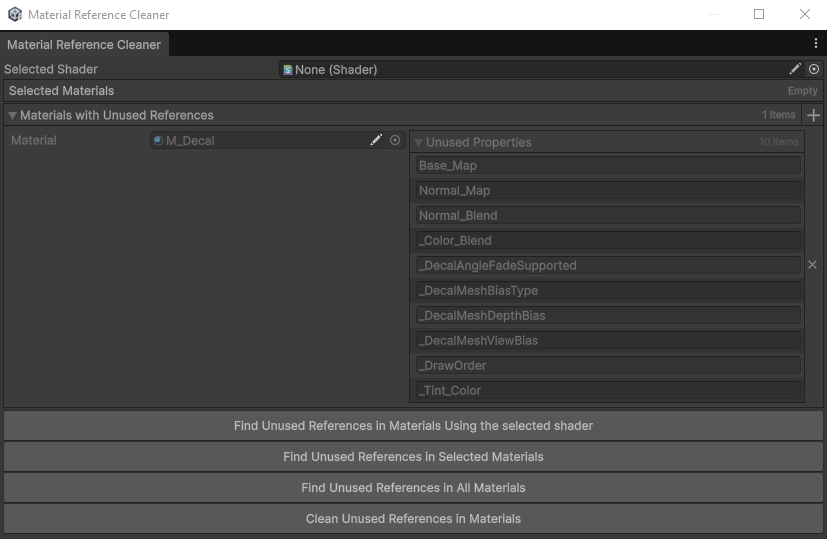
An often endured problem when working with materials in Unity is that one can create large material data by changing shaders during production. The old shader's properties as well as unused properties of a shader are still in the material's data. This tool solves that issue by clearing unused references in materials. The tool presents options to do this via selection of materials, by dragging and dropping it into a list, or by scanning the entire project for materials and cleaning the references in all of them.
Texture Array Generator
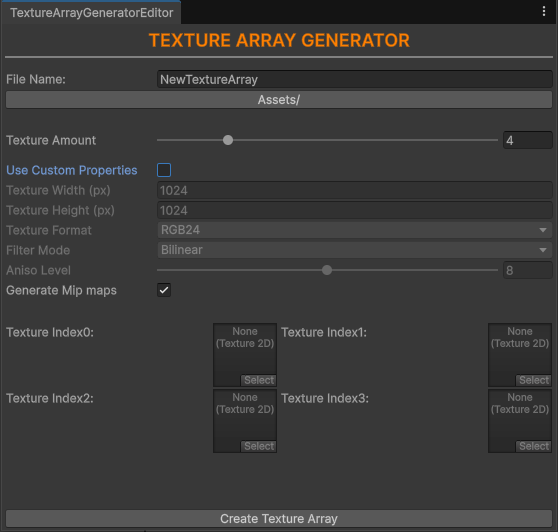
Texture arrays (Texture2DArray) can be great for optimizing sampling many textures while using only a single sampler. This tool generates texture arrays from textures, while letting the user choose any texture format, filter mode, set the aniso-level, generate mipmaps and more.
Creating Splines: Shape Automations
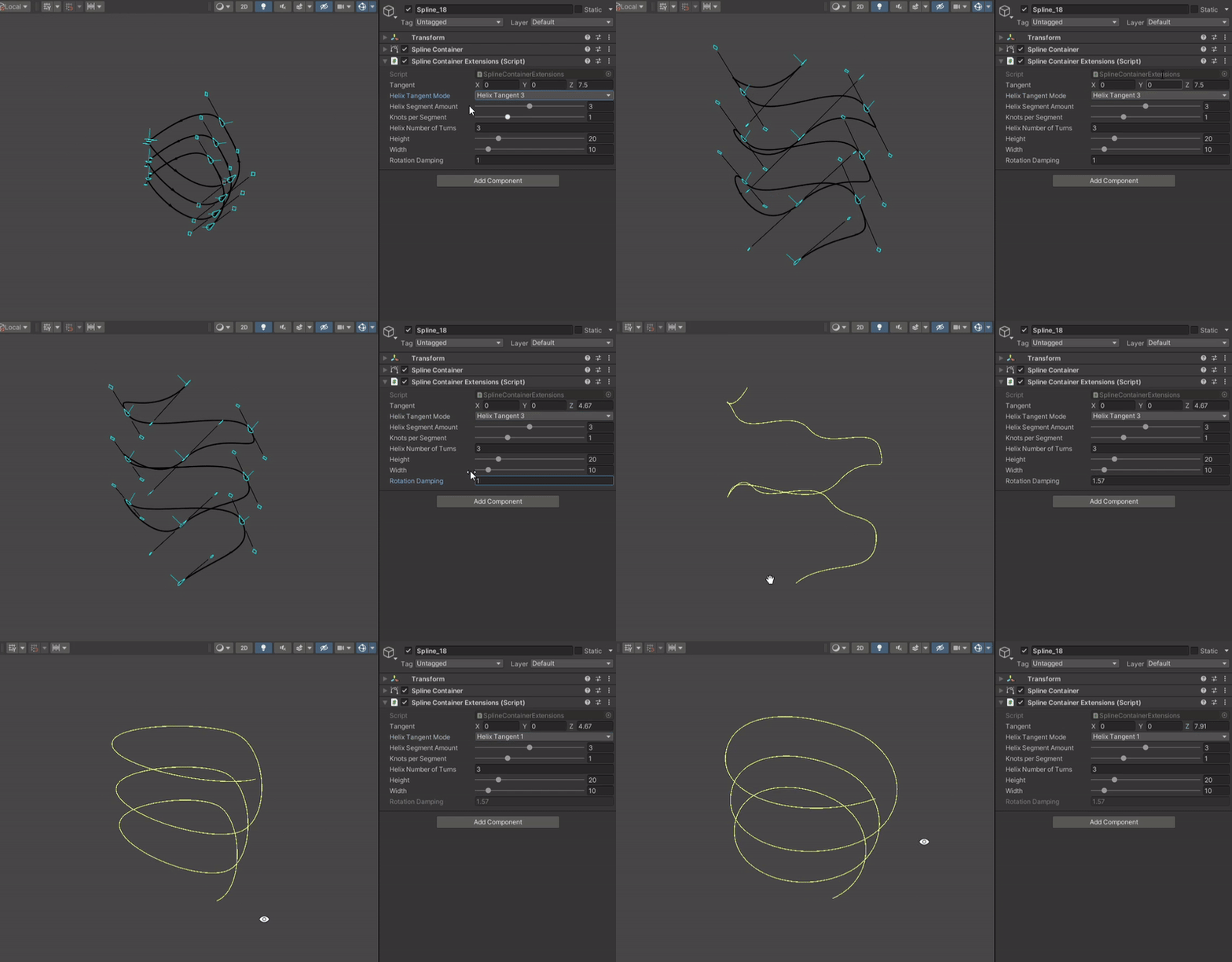
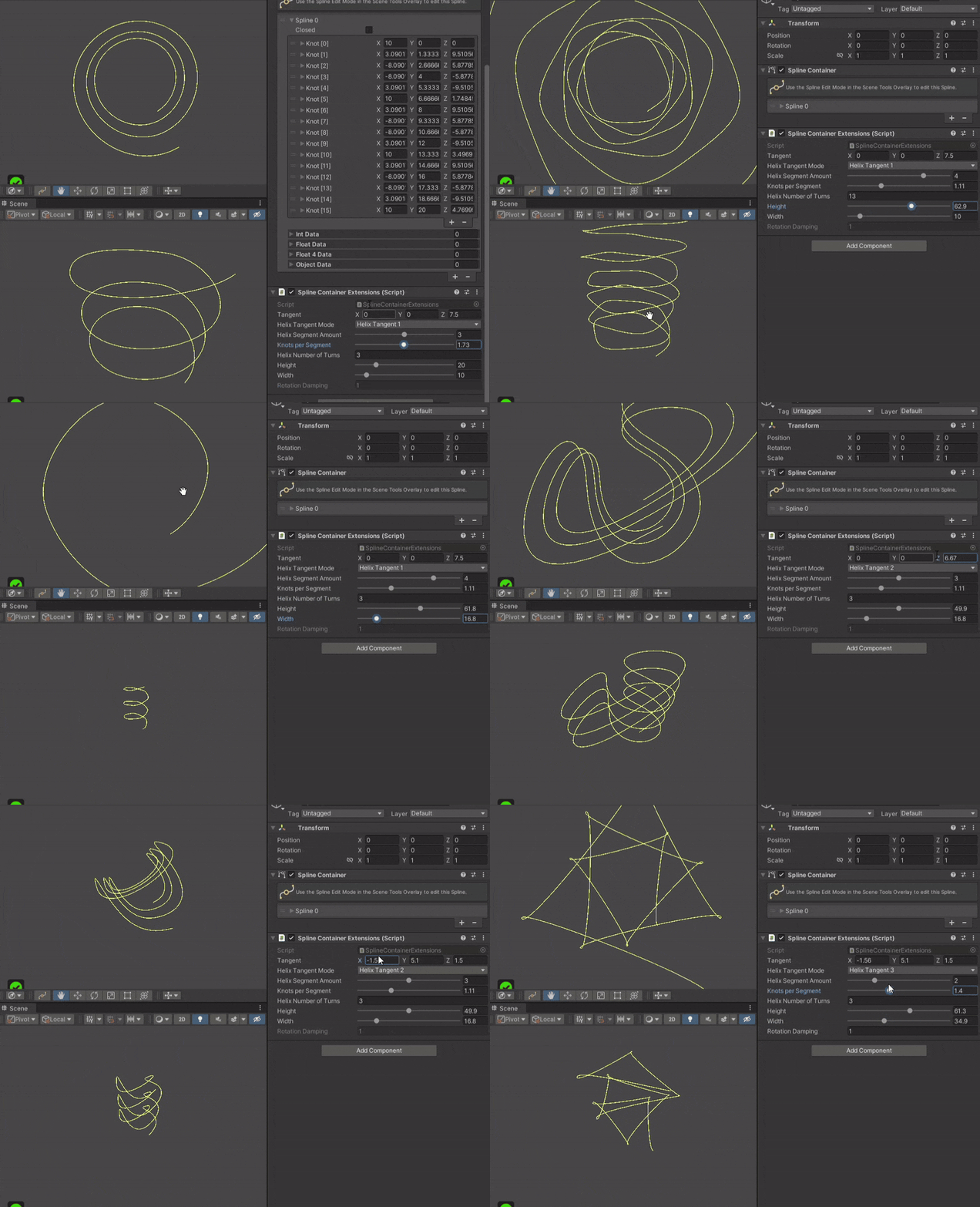
Unity’s Splines package comes with presets of splines such as Circle, Helix etc. A lack was that the presets don’t continue generating the knots positions according to an equation (i.e. adding more knots to the helix spline doesn’t follow the helix shape) I created extensions to solve such problems. Additionally, my custom spline offers different tangent calculation modes.
Position Automations and Runtime Updates
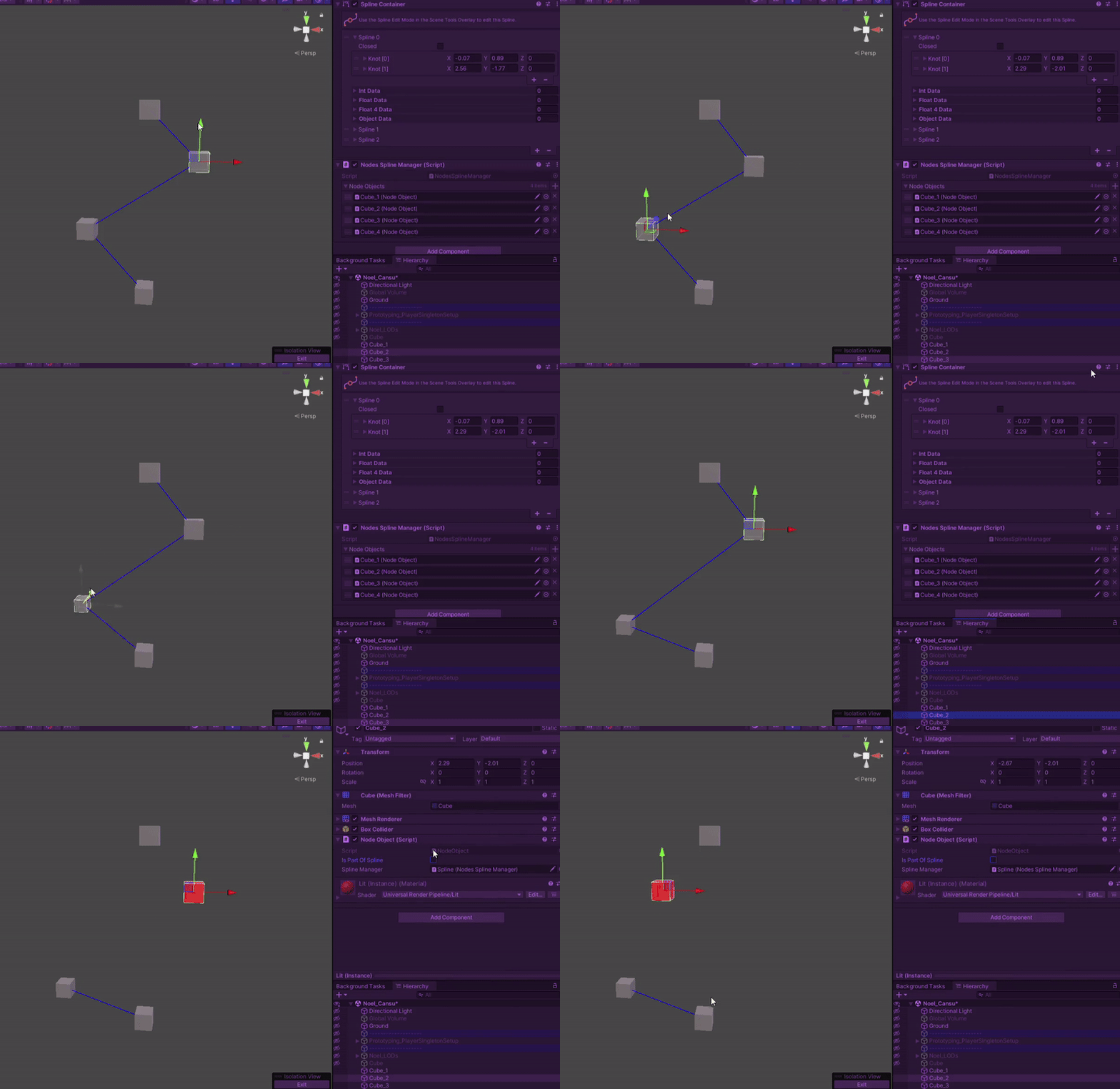
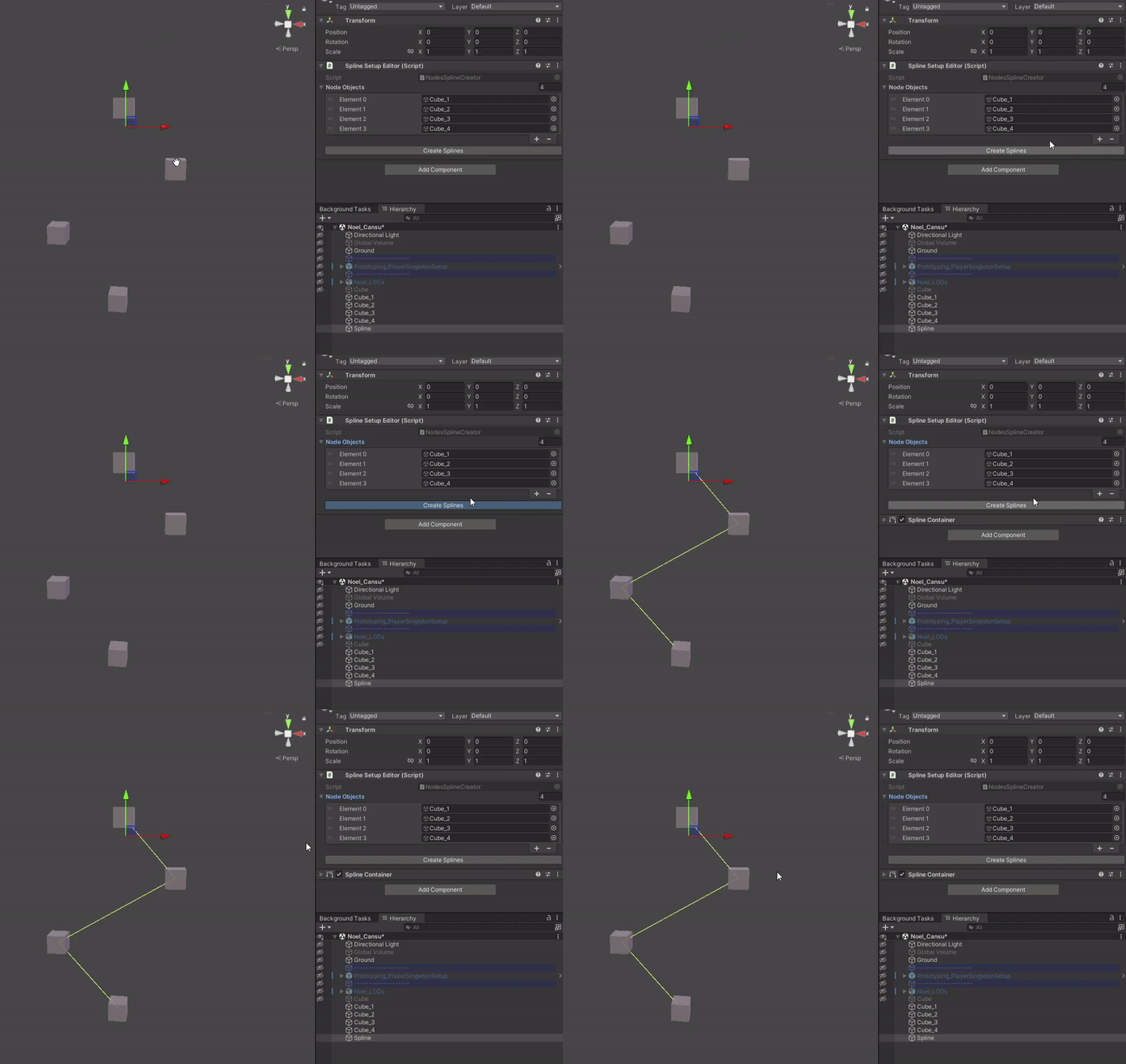
Below are examples of automating the creation of splines based on object positions. As well as an example of splines’ knots’ positions updating according to object reference position. Also with prototype of if an object turns red, the spline breaks. With this functionality, we can connect and disconnect objects through splines.
Animating Splines & Animating Objects Along Splines
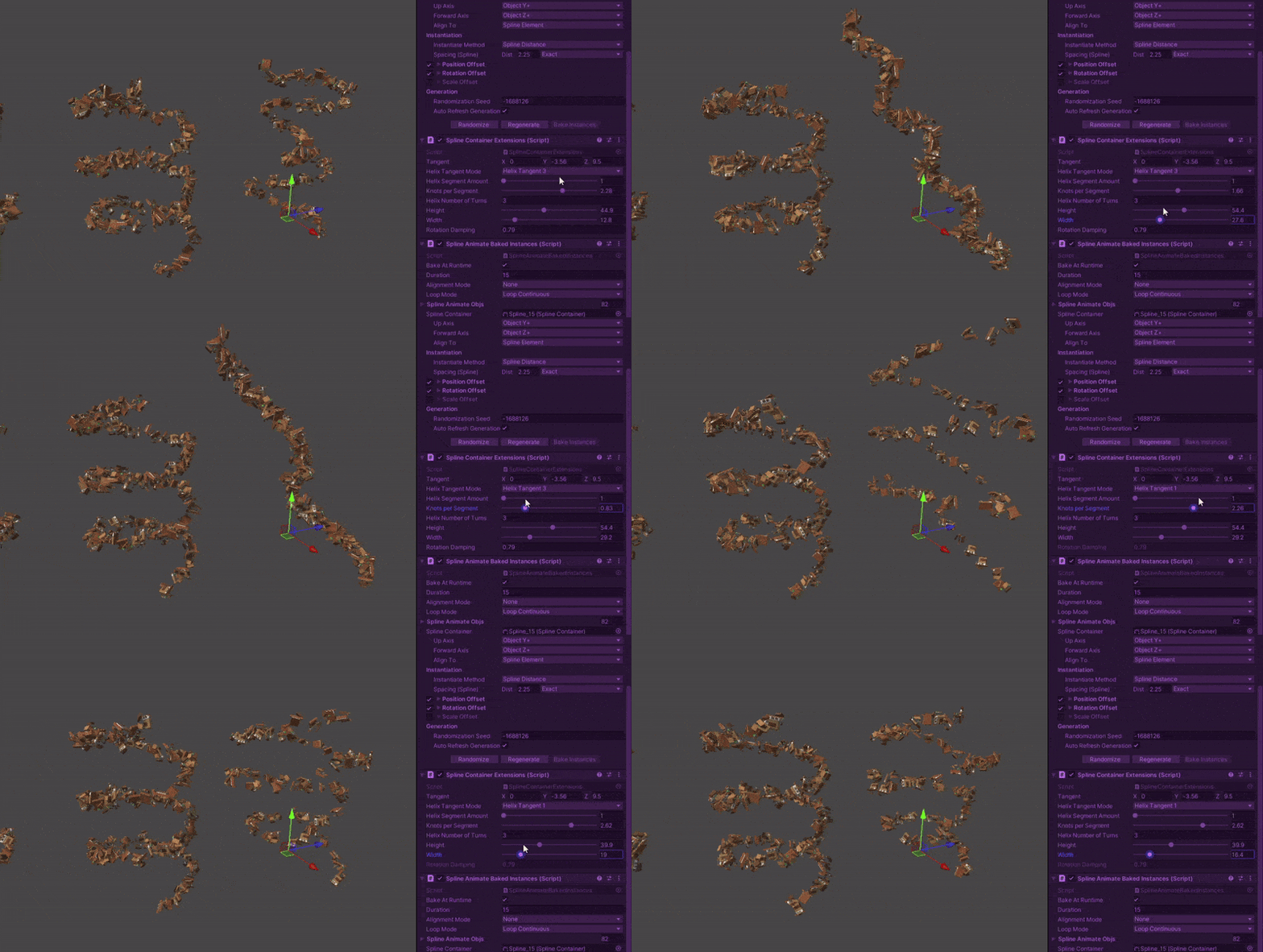
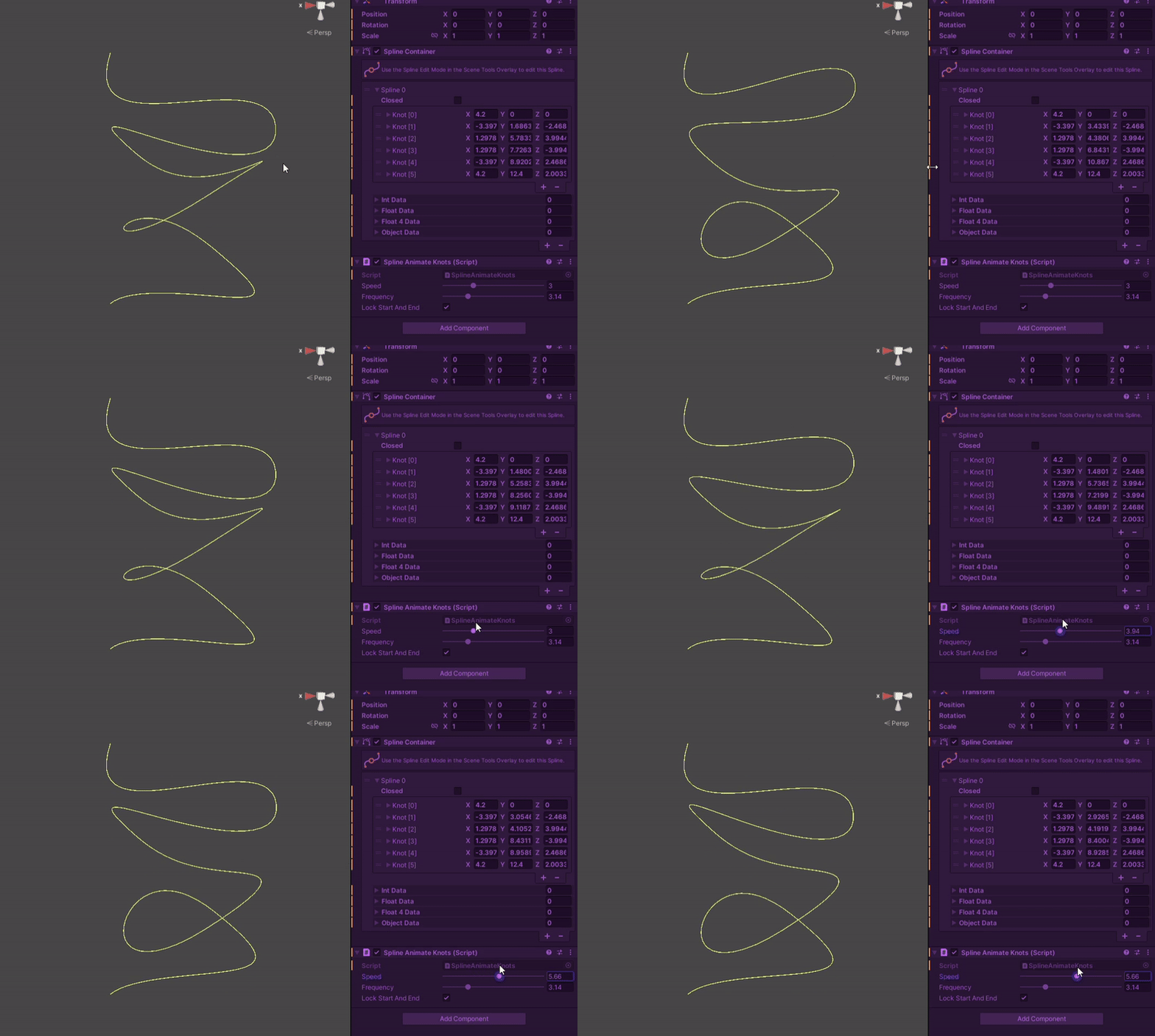
I also created extension scripts to animate objects along splines, automated the calculation of normalized properties for each object, as well as animating the actual knot points of the splines at runtime.
These various tools are created for the purposes of environmental VFX as well as animate the motion of gameplay objects.
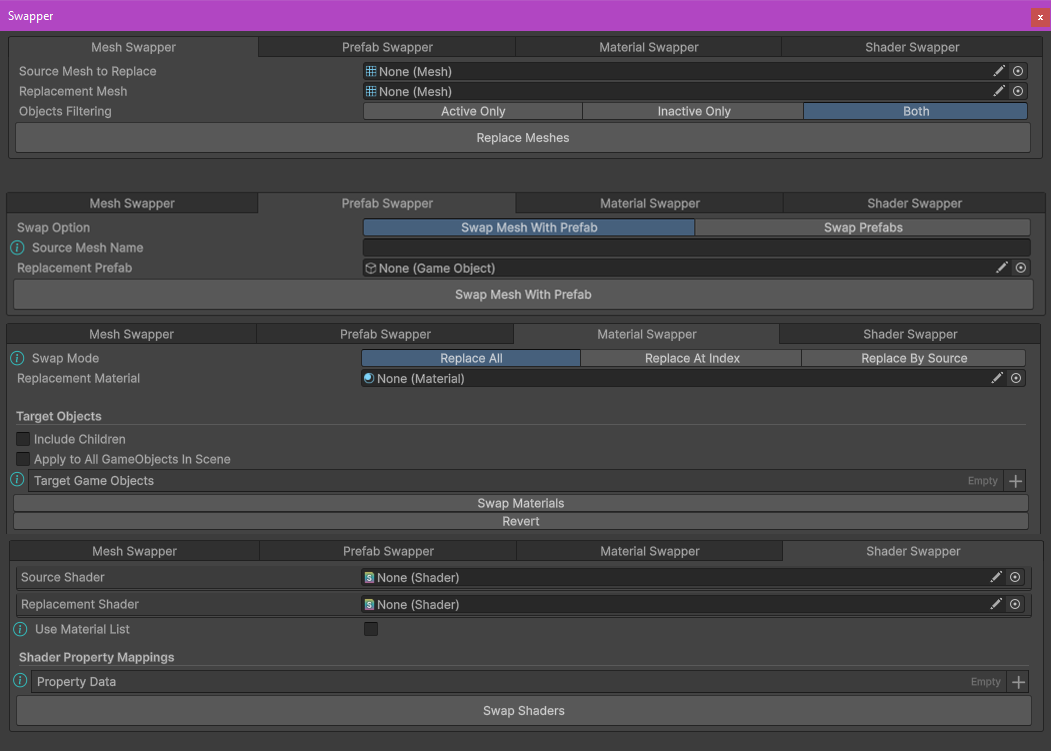
The swapper is a utility tool replacing instances of all objects of a specific type: Mesh, Prefab, Material or Shader. It offers options to replace them with different modes depending on the type.
One can choose a mesh file to replace with another mesh, filter whether the game object that has the mesh is active, inactive or go through all objects with the mesh, and replace them all with the target mesh. Similarly, a source mesh can be replaced with a prefab, or a source prefab can be replaced with a target prefab for all its instance. The tool goes through all instances in loaded scenes, which was what we required in Yerba Buena instead of a project-wide replacement tool.
The material and shader replacer sections have more options. In addition to the usual modes, the material swapper has options to swap materials by choosing which index of the renderer’s materials to replace. With the shader replacement, we can choose whether to only change the shader of some selected materials, or all materials in the loaded scenes. More importantly, when changing shaders, if the property names don’t match, some textures or colors might transfer wrong or not transfer at all. I added a shader property mappings section to solve this problem.
For example the albedo texture in URP default Lit shader is named ‘_BaseMap’, and our custom
shaders follow the Unity HDRP format of ‘_BaseColorMap’. While swapping the shader of materials,
I also ensure to swap the properties of the materials correctly to not lose any data.
.png)